Trader
You must have 2,500 $ or the equivalent amount in euros to open an LHV Trader account. This amount may decrease later without the need to close the account.
Real-time market data can be ordered via Trader platform by right clicking at relevant ticker in the trading window and selecting Launch Market Data Subscription Manager. There it is possible to select market and price information sets.
LHV Trader market data prices are displayed at the price list page.
Please read a thorough article (in Estonian) about market data in Financial portal.
You have to start by checking for the simplest errors. Check that your Internet connection is working and that you can access other pages. After that, you could reboot your computer (and the modem). The next step you could try is to log on from another computer (all necessary software may not be installed when you buy a new computer). The version of Java installed on your computer may not be compatible with the Trader software.
No. However, you can transfer different currencies from one account to the other (USD, EUR, GBP, CHF, HKD, CAD, AUD, JPY, SEK, RUB, NZD, NOK, HUF, DKK, CZK).
Payments to a Trader account can only be made in-house, that is, from your other LHV bank account. Likewise, transfers from a Trader account can also be made exclusively to your other LHV bank account. You can make an in-house payment:
- In the Internet bank, by choosing Everyday Banking → Payments and selecting from the ‘Payment type’ drop-down menu ‘Payment between own accounts’.
- In the mobile app by tapping the button Pay.
You can enter payment orders to/from a Trader account at any time, but the money arrives on business days from 9 to 17:00. A payment entered before 17:00 will arrive within an hour, later payments will be processed in the morning of the next business day.
Payments will also be processed on public holidays when foreign markets are open, but we will inform you about the exact processing times on the LHV website.
You can restore the LHV Trader settings that have been deleted or lost for any other reason. In the trading window of the LHV Trader system, go to File ➞ Restore Settings ➞ and select the last trading day which has the settings you want to restore from the menu.
You have to change the settings of your order to trade on the primary and secondary market. Select Pre-settings from the Global Settings menu in LHV Trader and tick the box ‘Permit order activation or fulfilment outside regular trading hours’. You have to tick the box ‘Fulfil outside RTH’ in the order validity menu if you want to permit single orders to be fulfilled on the primary or secondary market.
Cancelling and amendment of orders is usually free of charge. Option and future orders are exceptions, as stock exchanges have often established charges for these. Usually 1.5 $ per order amendment or cancellation is charged.
All of the most common currencies can be converted in the LHV Trader system. All you need to do is enter the symbol of the currency (EUR, USD, SEK) in the empty line on the trading screen, select Cash and the symbol of the other currency. The transaction is completed similarly to securities transactions.
The minimum account for currency trading is 2,000 $ and the maximum leverage rate depends on currency.
LHV Trader allows clients to use leverage or to borrow money with equities as collateral, which can be used to buy new equities. All equities that cost more than one dollar and are traded on the main US stock exchanges (NYSE, AMEX, NASDAQ) can be used as collateral. You can borrow another 10,000 euros if you have 10,000 euros in your account. You can inflate your account to 40,000 euros within the same day, which means that the client’s own funds comprise only 25% of the total amount in the account. The share of own funds must be brought back to 50% by the end of the day. You must keep in mind that options and equities of low liquidity are not considered as part of collateral. You must already have collateral in your account when you trade in futures, which reduces the maximum amount you can borrow. You must have at least $2,000 in your account to use leverage and buy short positions.
The scale of leverage can be viewed at the Leverage section of the account page. There are given the leverage multiplier: if it is below one then no leverage is used, if below two the double leverage is used.
Short selling securities allows you to benefit from decreases in security prices. You can short sell equities by concluding a sale transaction for selling equities you don’t actually have by borrowing them from your broker. The position can be closed/covered with the completion of the relevant purchase transaction by buying shorted equities back from the market. Short selling is extremely risky, as potential losses are unlimited. Not all equities can be shorted; the best indicator is to add the shortable column in LHV Trader settings. A Green colour indicates that an equity is shortable Dark Green indicates that the equity is shortable if a counterparty is found and Dark Red indicates that the equity is not shortable at the moment The column can be added to the trading window: Settings ➞ Global Settings ➞ Trading Window ➞ Default Settings ➞ Shortable
The goal of the 2-factor authentication is to avoid possibility that third person may access Trader account using username and password. By activating 2-factor authentication it is not possible to access Trader account by using simply username and password. Instead, it is necessary to use authentication via Handy Trader phone app.
If device has already Handy Trader app then first delete app’s cache. NB! Device settings must allow display of push notifications.
Android
- Install Handy Trader app from Google Play Store
- Open the app
- Select „Register Two-Factor“
- Select „Continue“
- Enter Trader username and password, select „Continue“
- vSelect or enter phone number that will receive text messages
- Select „Get Activation Code“
- You will receive a text message to the selected phone number
- Enter activation code, enter pin code twice
- Select „Activate“
- App displays the success message
- Select „Done“ to exit the activation procedure
- 2-factor authentication is ready to use.
iOS
Preconditions:
- Device must have either TouchID or FaceID.
- Device iOS version must be 8 or later.
- Device must have either TouchID, FaceID or Passcode enabled. TouchID/FaceID is the recommended choice.
- Install Handy Trader app from App Store
- Open the app
- Enable pop-up notifications by the app
- Select „Register Two-Factor“
- Select „Continue“
- Enter Trader username and password, select „Continue“
- Select or enter phone number that will receive text messages
- Select „Get Activation Code“
- You will receive a text message to the selected phone number
- Enter activation code
- Select „Activate“
- Use selected authentication method (FaceID or TouchID) in order to confirm activation
- App displays the success message
- Select „Done“ to exit the activation procedure
- 2-factor authentication is ready to use.
2-factor authentication can be used via Handy Trader app (Android/iOS). The usage of the 2-factor authentication is for free.
- Enter username and password at Trader log in window.
- Device that has Trader app with activated 2-factor authentication displays a pop-up notification to initiate an authication process.
- Open the notification, enter pin code and and select „Log in“.
- If the pin code is correct the logging in at Trader is successful.
- Contact LHV trading desk between 09:00 am and 4:30 pm via phone 6 800 420.
- LHV will forward a temporary password via SMS. This password is valid only for 20 minutes.
- Enter LHV Trader account management platform.
- Log in and open Settings → User settings → Password page.
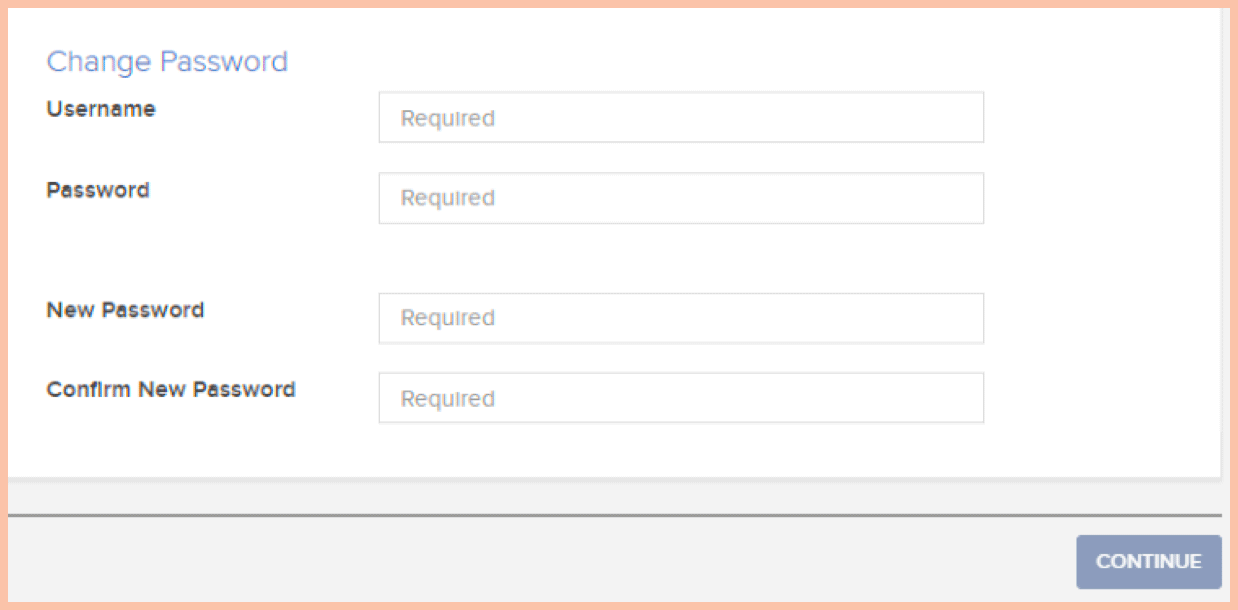
- Enter username and temporary password and a new password.
- Enter displayed Challenge Code at the Challenge field located at Handy Trader app.
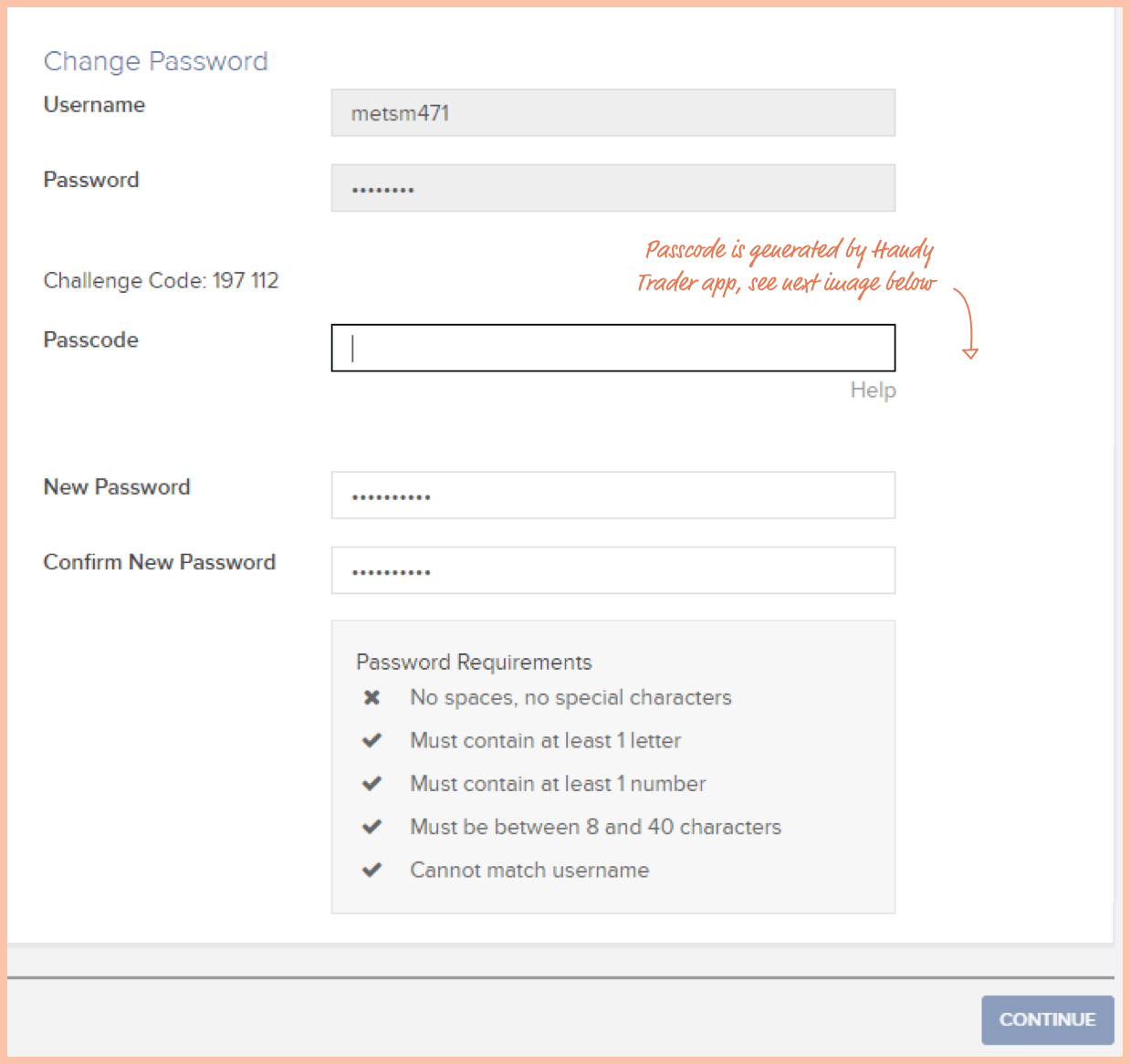
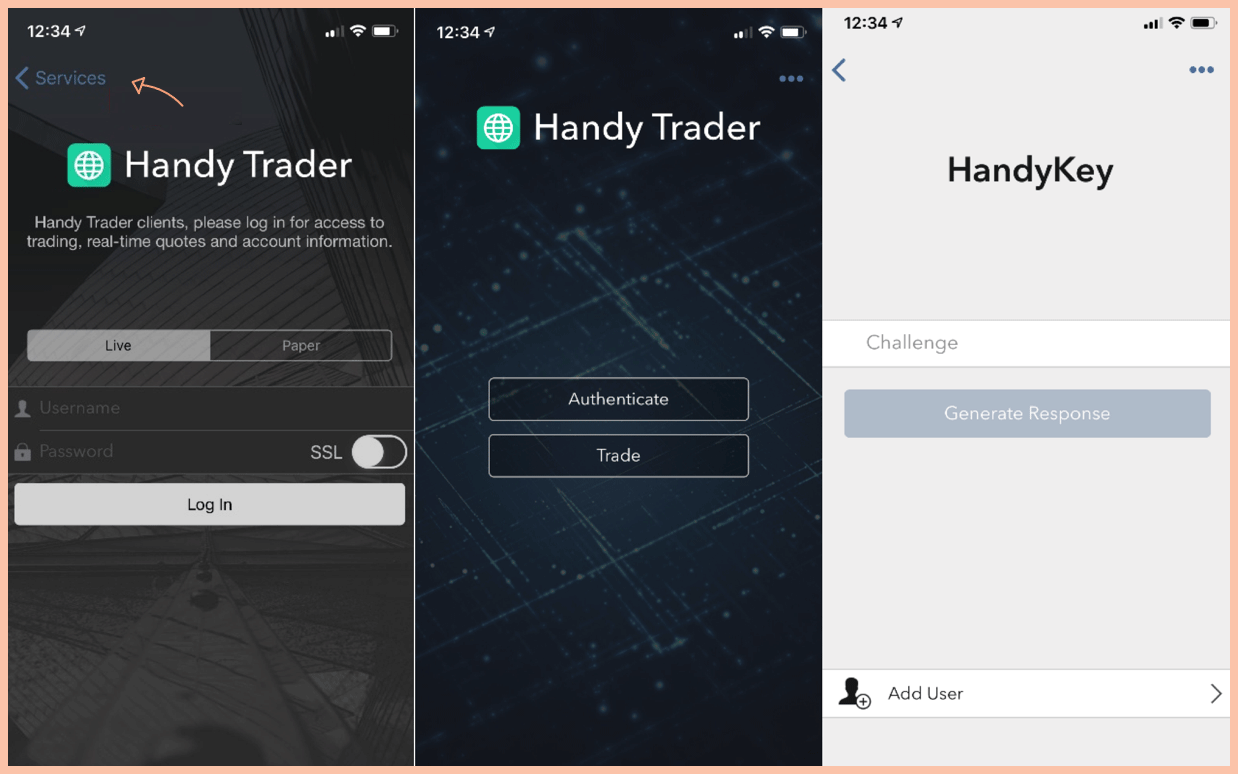
- Enter response generated by Handy Trader to the Passcode field at the account management platform.
- Once the response and new password have been inserted click Continue. Password has been successfully changed.
- Enter LHV Trader account management platform.
- Log in and open Settings → User settings → Password page.
- Enter username and existing password and a new password.
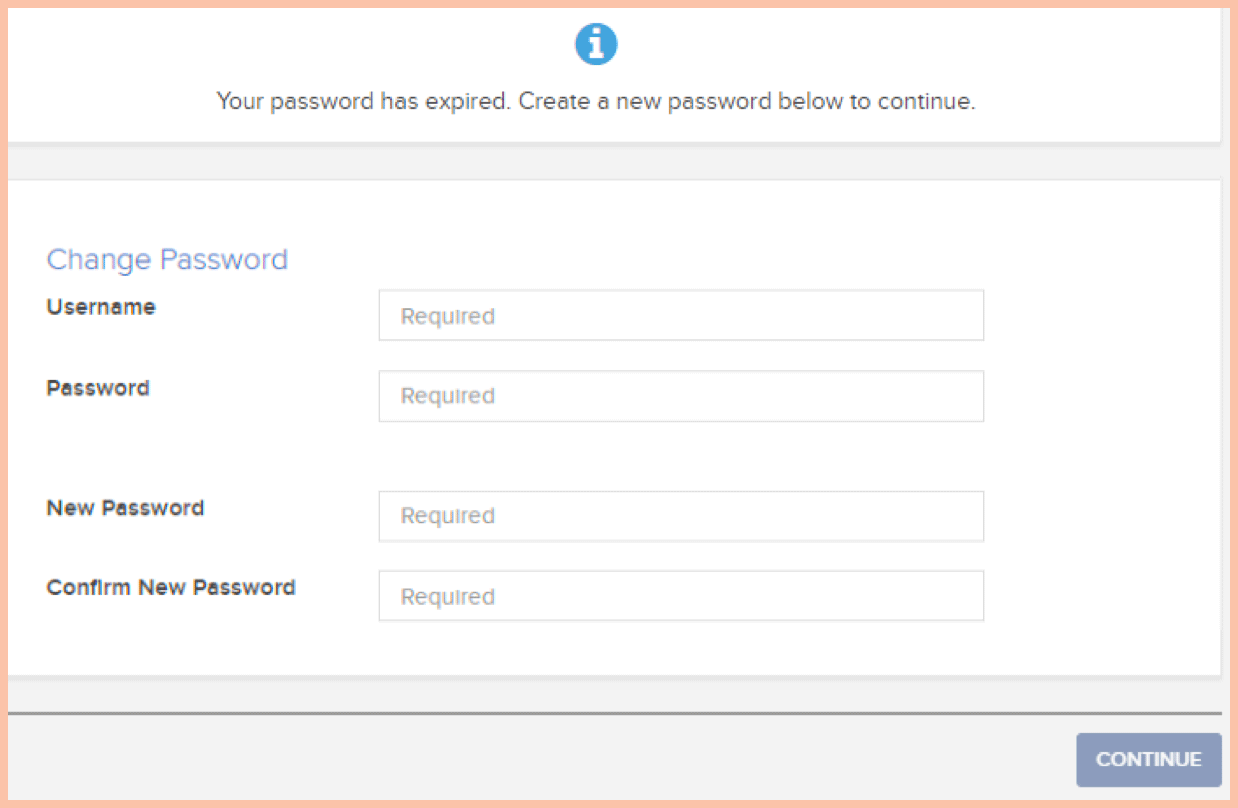
- Enter displayed Challenge Code at the Challenge field located at Handy Trader app.
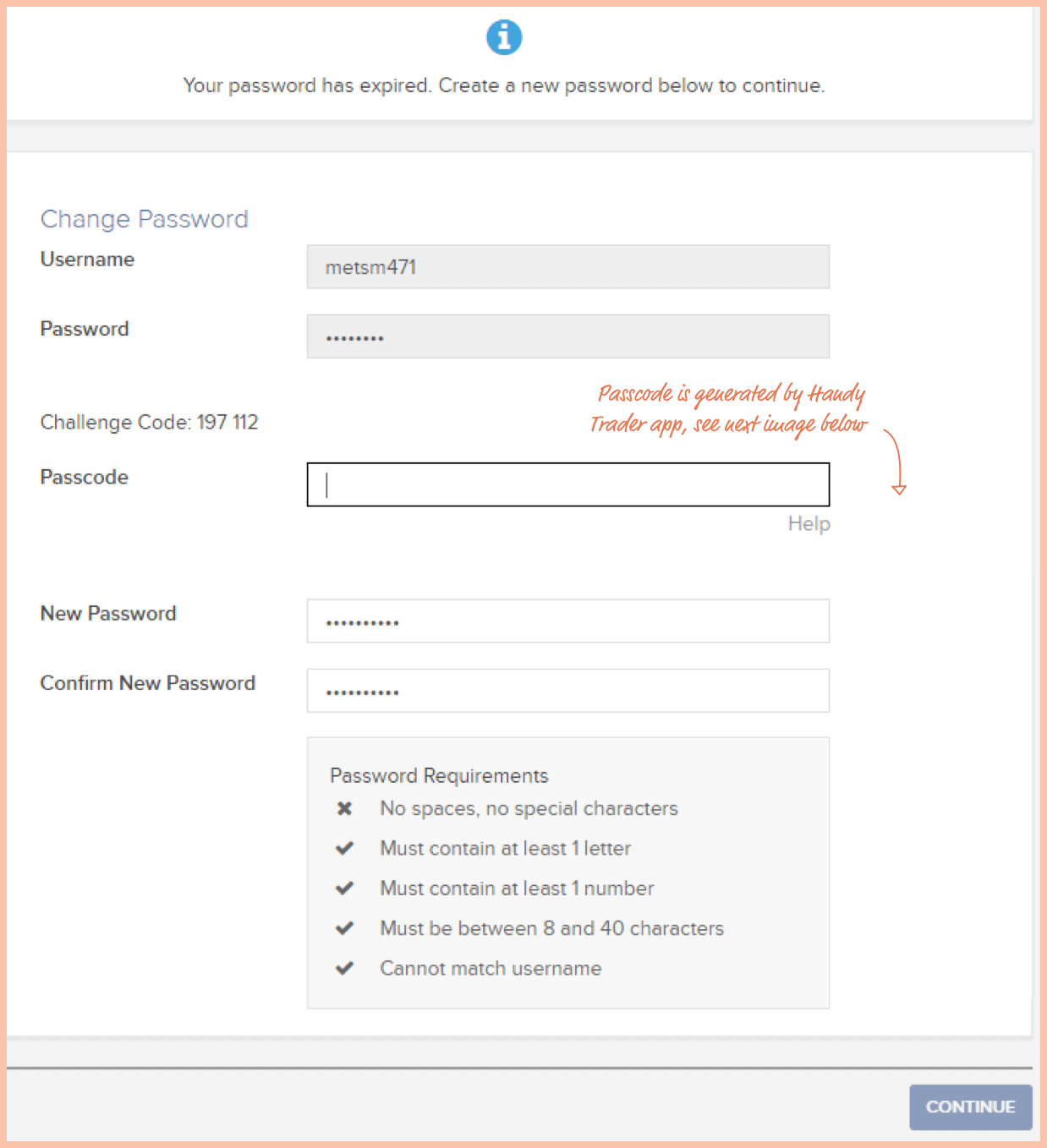

- Enter response generated by Handy Trader to the Passcode field at the account management platform.
- Once the response and new password have been inserted click Continue. Password has been successfully changed.